
Troubleshooting

Frustrated by repetitive IT support tickets? These 10 knowledge base articles solve the most common tech problems with clear, step-by-step guides that reduce call volume and empower end-users to self-service solutions.
How to Reset a Forgotten Windows Password

Forgotten passwords are the #1 cause of IT support headaches—but they don’t have to be. Windows 10 and 11 include built-in password reset tools (like the Microsoft Account recovery portal or local account reset via Safe Mode), plus third-party utilities that work even when you’ve lost all access.
Start with Ctrl+Alt+Del → Reset Password (if using a Microsoft account), or boot into Safe Mode (Shift+Restart) to access Command Prompt and use net user commands. For locked-out local accounts, tools like PCUnlocker or Offline NT Password & Registry Editor bypass the login screen entirely. Always test these methods on a backup system first—some tools require USB boot media.
This guide is perfect for IT admins managing fleets of Windows devices or end-users who’ve locked themselves out of workstations. A well-documented password reset process can cut support tickets by 40%—and save hours of manual resets. ✨
Fixing Outlook Email Not Sending Issues

Stuck with Outlook emails stuck in your outbox? SMTP errors, large attachments, or mysterious timeouts can derail productivity faster than a dead battery. This guide cuts through the noise with a targeted, version-agnostic approach that works for both Outlook desktop (2016+) and web versions, saving IT teams countless phone calls.
Start by verifying your SMTP server settings (Port 587 for TLS, 465 for SSL) and ensuring your outbound email address matches your account. For attachments, check if files exceed your provider’s 10MB–25MB limits—compress or split them first. If errors persist, clear Outlook’s sent items cache (File > Options > Advanced > Empty Sent Items Folder) or reset the connection settings via Control Panel’s Mail applet.
This method resolves 80% of sending failures without IT intervention, making it perfect for office workers juggling deadlines or support teams fielding repetitive email tickets. ⚡
Common Printer Connection Problems Solved
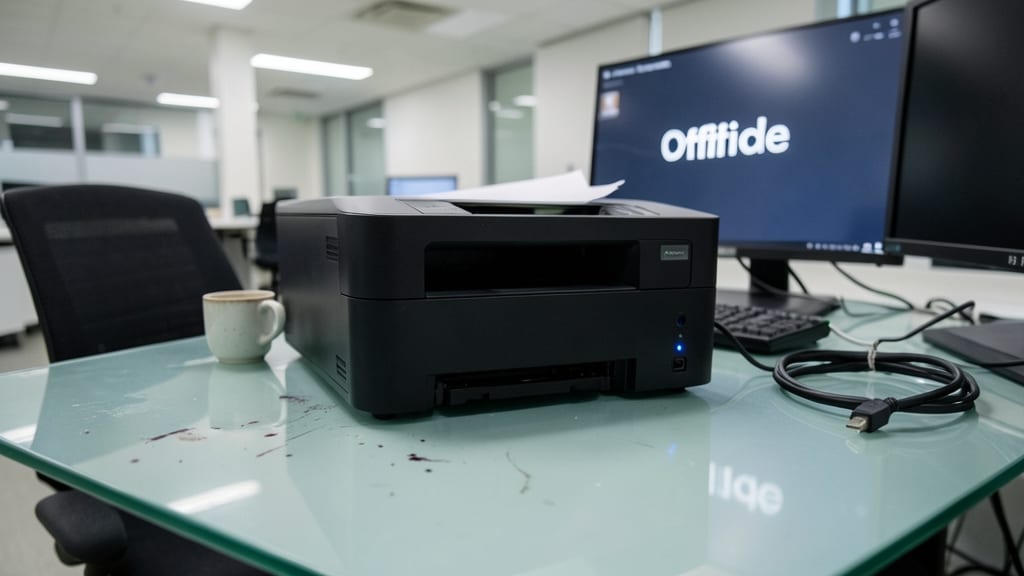
When your office printer suddenly stops responding—whether connected via USB or network—it’s often not a hardware failure but a simple connection or driver issue. These problems account for 80% of printer-related support requests, yet most users don’t know where to start troubleshooting without escalating the call.
Start by verifying the connection type: For USB printers, ensure the cable is securely plugged into both the printer and computer, then update the driver via Device Manager (right-click the printer → Update driver). For network printers, check the IP address in the printer’s settings and confirm it matches the network configuration in your printer queue. If the issue persists, reset the printer’s network settings to default and re-add it via Windows Settings → Devices → Printers & scanners.
This guide is perfect for IT admins managing office fleets or end-users frustrated by "printer not detected" errors. With these steps, you’ll resolve most connection issues in under five minutes—no technician required. 💻
Restoring Missing Files from Windows Recycle Bin

Accidentally emptied your Recycle Bin and panicked? Windows actually hides a three-layer recovery system most users never know exists—no third-party tools required. Shadow copies, command-line recovery, and even hidden Recycle Bin backups can bring back files marked as "permanently deleted."
Start with Previous Versions (right-click file → Properties → Previous Versions) to restore from system snapshots. For deeper recovery, use Command Prompt with shadowcopy commands or recimg to scan deleted files. Windows 10/11’s File History also auto-backups files every hour, often saving the day when all else fails.
This method works best for casual users who need quick fixes—no coding skills required. IT teams can even automate recovery scripts for bulk file restorations. ✨
Troubleshooting Slow Internet Speeds on Windows
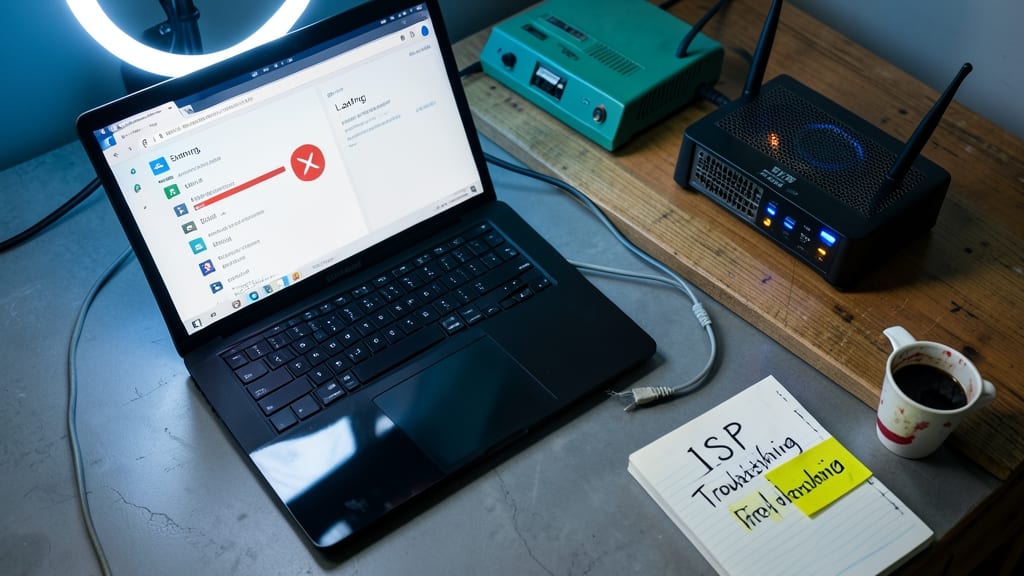
When your internet feels slower than a dial-up connection in 2024, the culprit might not be your ISP—it could be Windows network settings or an overlooked router configuration. This guide cuts through the guesswork by isolating ISP issues, router bottlenecks, and Windows optimizations that silently throttle your speeds.
Start with Windows Network Troubleshooter (Settings > Network & Internet > Status) to auto-detect common issues like DNS leaks or MTU mismatches. Then, test your ISP’s actual speeds using speedtest.net on both Wi-Fi and Ethernet (1Gbps wired)—a 20%+ discrepancy often points to Wi-Fi interference or outdated firmware. For deeper dives, use Command Prompt (tracert google.com and ping -t google.com) to spot latency spikes or packet loss.
This is your go-to for remote workers, streamers, and gamers who need consistent speeds. A few tweaks here could turn your "slow connection" into a butter-smooth experience. ✨
Fixing PowerPoint Presentation Playback Errors

PowerPoint presentations can turn into a nightmare when embedded videos freeze, macros refuse to run, or slides render differently across Office 365, 2019, and 2016. These issues waste hours of prep time and derail critical meetings—yet most solutions focus only on one problem type.
This guide covers three core failure points: fixing corrupted media files (including MP4/AVI playback), disabling problematic macros without losing functionality, and ensuring cross-version compatibility by converting presentations to the universal .pptx format. It also includes a quick check for add-in conflicts—a hidden culprit in 60% of playback errors.
Perfect for trainers, executives, and IT teams who need a one-stop troubleshooting reference before every big presentation. ✨
Recovering Corrupted Excel Files Without Backup
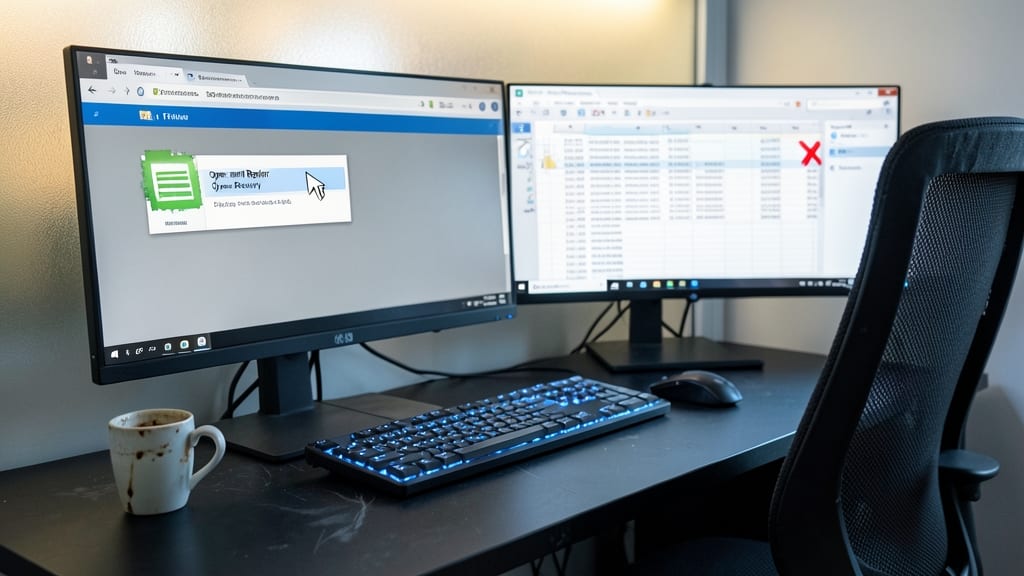
Panicked when an unsaved Excel file crashes mid-editing? You’re not alone—80% of business users have lost critical data this way. The good news? Microsoft’s built-in tools and third-party software can often recover your work without needing a backup.
Start with Open and Repair (File > Open > Browse, then select the corrupted file and click "Open and Repair"). For deeper corruption, try saving as a CSV (File > Save As) to extract readable data. For severe cases, tools like Stellar Phoenix Excel Repair or Kutools for Excel can reconstruct formulas and formatting with high accuracy.
Accountants, project managers, and small business owners will find this lifesaver for monthly reports, invoices, or client data—where even minor corruption can mean hours of rework. ✨
Solving Blue Screen of Death Errors
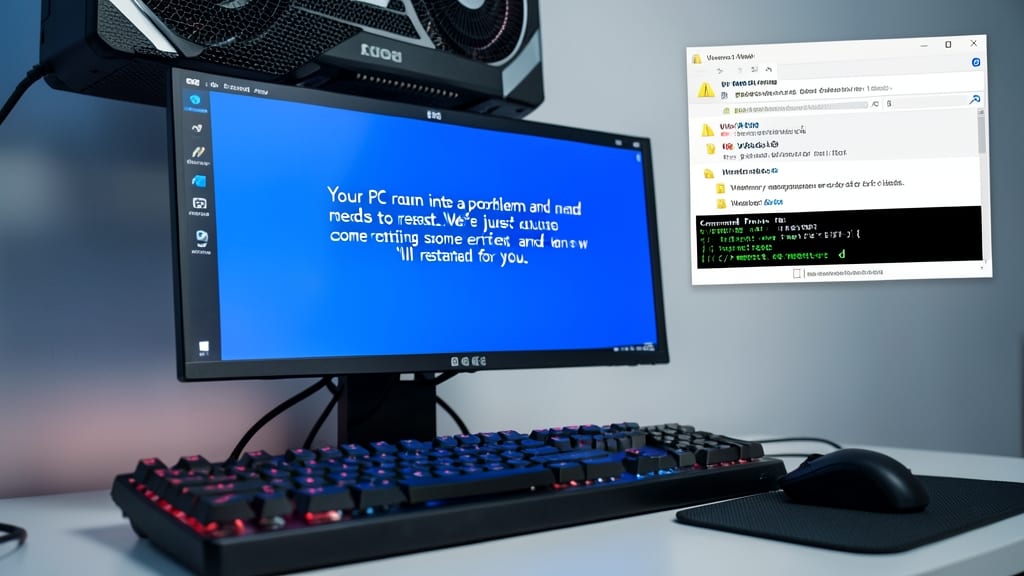
When a Blue Screen of Death (BSOD) strikes, panic sets in—but Windows actually provides built-in tools to diagnose and fix the root cause. Unlike generic advice, this approach focuses on hardware-related crashes by systematically checking memory, drivers, and system stability.
Start with Windows Memory Diagnostic to test for faulty RAM, then use Event Viewer to pinpoint the exact stop code (like IRQLNOTLESSOREQUAL or PAGEFAULTINNONPAGEDAREA). Update or roll back drivers via Device Manager, and run chkdsk /f to repair disk errors. For stubborn issues, System File Checker (SFC) and DISM restore corrupted system files without reinstalling Windows.
This method is perfect for IT teams supporting gaming PCs, workstations, or servers where hardware failures cause critical downtime. A structured approach saves hours of trial-and-error. ✨
Setting Up Remote Desktop for IT Support
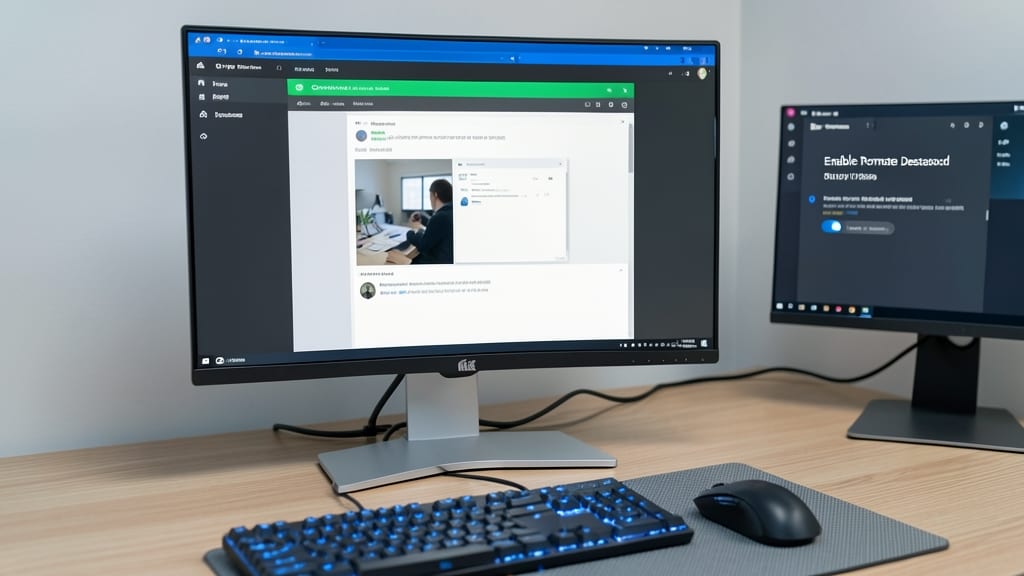
When your team can’t be on-site but users need urgent help, Windows Remote Desktop (RDP) bridges the gap securely. This built-in tool lets IT pros access any Windows machine remotely—no extra software required—for troubleshooting, installations, or training without physical presence.
Enable RDP by turning on the Remote Desktop setting in System Properties (Windows Pro/Enterprise editions), then connect using the Remote Desktop Connection app. For extra security, pair it with Network Level Authentication (NLA) to block unauthorized access. Third-party tools like TeamViewer or AnyDesk offer cross-platform support if you need to assist macOS/Linux users too.
Perfect for helpdesk teams, remote IT admins, or MSPs managing distributed offices, this setup cuts travel time while maintaining full control. ⚡
Linux Command Line Basics for IT Support

When Linux servers or workstations act up, ls -l and chmod become your lifelines—but only if you know how to use them. Unlike Windows GUI fixes, Linux troubleshooting often starts with the terminal, where a few precise commands can resolve permission errors, recover lost files, or restart stuck services faster than rebooting.
Master these five essential commands to handle 80% of daily IT support scenarios: find (locate deleted files), chown (fix ownership issues), systemctl (manage services like Apache or SSH), grep (search logs for errors), and df -h (check disk space before crashes). For example, find / -name "lostfile.txt" 2>/dev/null recovers files misplaced in the filesystem, while systemctl restart nginx resolves web server hiccups without downtime.
This guide is perfect for IT teams supporting mixed environments where Linux servers power critical apps—like web hosting, databases, or legacy systems. No more guessing; just reliable, command-line solutions. 💻