
Software
Microsoft Edge is packed with hidden features that can transform your browsing experience. These pro-level tricks will help you work faster, stay organized, and customize your browser to fit your exact needs—without sacrificing performance.
Enable Vertical Tabs for Better Multitasking
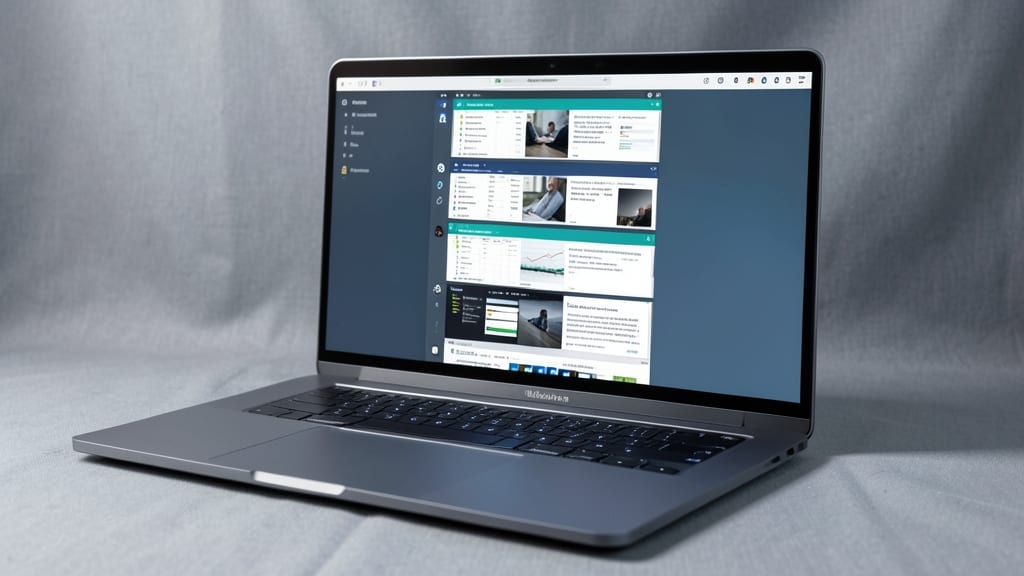
Juggling multiple projects? Microsoft Edge’s vertical tabs are a game-changer for multitaskers who hate tab clutter. Unlike traditional horizontal tabs, this layout stacks open pages vertically, saving precious screen real estate while keeping everything visible at a glance.
To enable it, head to Settings > Appearance and toggle "Show tabs vertically". Once active, you’ll notice a cleaner workspace—no more scrolling through endless tabs. The feature also syncs across devices via your Microsoft account, so your workflow stays consistent whether you’re on desktop or laptop. Perfect for developers, researchers, or anyone juggling research, coding, and emails simultaneously.
This tweak is especially useful for 4K monitors or smaller screens, where every pixel counts. Give it a try and reclaim your digital workspace! ✨
Use Collections to Organize Research Instantly
Drowning in research tabs or struggling to keep notes organized? Microsoft Edge Collections turns your browser into a digital research hub with just a few clicks. This built-in tool lets you clip text, images, and full web pages into a single, searchable workspace—no third-party extensions required.
With one-click saving, you can highlight key passages, add sticky notes, and even rearrange items into customizable folders. The cross-device sync ensures your collections stay accessible whether you're working on your laptop, tablet, or phone. Best of all, it integrates seamlessly with Microsoft OneNote for advanced note-taking.
Perfect for students writing papers, researchers compiling data, or creatives curating inspiration, Collections eliminates the chaos of scattered tabs and bookmarks. Give it a try and never lose a source again! ✨
Speed Up Loading with Immersive Reader Mode
If you struggle to focus while reading online—whether it’s due to cluttered layouts or visual distractions—Microsoft Edge’s Immersive Reader Mode is a game-changer. This built-in tool strips away everything but the text, creating a distraction-free environment that boosts comprehension and retention.
With customizable font sizes, spacing, and color schemes (including dyslexia-friendly options), you can tailor the experience to your needs. The mode also supports text-to-speech narration, letting you listen while following along—a lifesaver for long articles or complex documents. It’s accessible via the Immersive Reader icon in Edge’s toolbar or through the Reading View menu.
Perfect for students, researchers, or anyone with ADHD, dyslexia, or sensory sensitivities, this feature turns chaotic web pages into clear, digestible content. Give it a try for your next deep-read session! ✨
Customize Your New Tab Page for Productivity
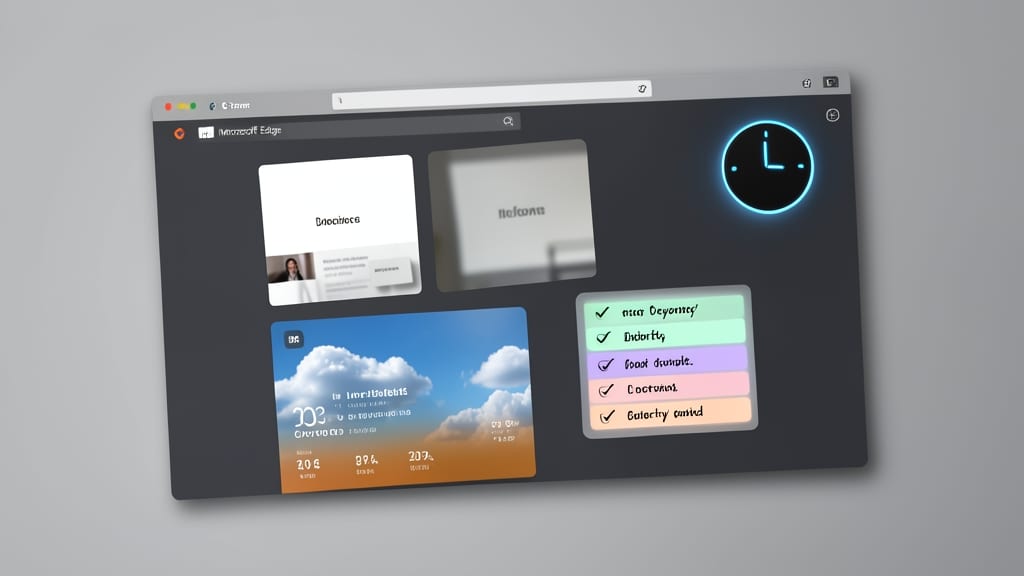
Tired of staring at a generic new tab page every time you open Edge? You can transform it into a personalized productivity hub—pinning your most-used sites, adding weather updates, or even embedding to-do lists right where you start your day.
Edge’s customizable new tab page lets you rearrange pinned sites (like Outlook, Trello, or Slack) for instant access, while widgets for news, weather, or calendar events keep you updated without switching tabs. The dark mode option reduces eye strain, and you can even add a to-do list widget to tackle priorities before diving into work. Sync these settings across devices so your dashboard follows you everywhere.
This is perfect for professionals who want a one-stop dashboard—no more tab-hopping to check emails or weather forecasts. Just open Edge, and your day’s essentials are ready. ✨
Block Distractions with Focus Assist Settings
Struggling to focus during work or study sessions? Microsoft Edge’s Focus Assist acts like a digital "Do Not Disturb" shield, automatically blocking notifications and distracting sites during your set hours. Unlike manual blocking, this feature learns your habits and adapts to keep interruptions at bay.
Set up custom time blocks (e.g., 9 AM–5 PM) to silence all alerts, or manually activate it with a click. You can also block specific sites (like social media) or enable Priority Mode to only allow essential notifications. The best part? It syncs across devices, so your focus stays consistent whether you’re on your laptop or tablet.
This is a game-changer for writers, developers, or anyone tackling deep work. With zero manual effort, Focus Assist turns your browser into a distraction-free zone. ✨
Leverage Edge’s Built-In Password Manager
If online shopping feels like a security tightrope walk, Microsoft Edge’s built-in password manager is your safety net. It auto-fills logins across devices while encrypting your data with AES-256 encryption—the same standard used by banks—so you never type credentials again.
With one-click access to saved passwords and a phishing protection feature that flags suspicious sites, it’s ideal for users juggling multiple accounts. The manager also syncs across Windows, macOS, iOS, and Android, so your logins travel with you seamlessly. No third-party extensions needed—just built into Edge.
This is a game-changer for anyone who shops frequently or manages complex logins. 💻
Optimize Battery Life with Edge’s Power Saving Mode

Running low on battery during a long flight or workday? Microsoft Edge’s Power Saving Mode is your secret weapon—it intelligently throttles background processes like extensions and animations, preserving battery without slowing down your browsing.
To enable it, head to Settings > System > Power Saving Mode and toggle it on. The browser automatically reduces CPU usage by up to 20% while keeping core functionality intact. It’s perfect for 1080p video playback or heavy multitasking sessions where you need every watt to last.
Ideal for remote workers, students, or travelers, this mode ensures you stay connected all day—no more frantic searches for a charger. 💪