
Tip & Trick
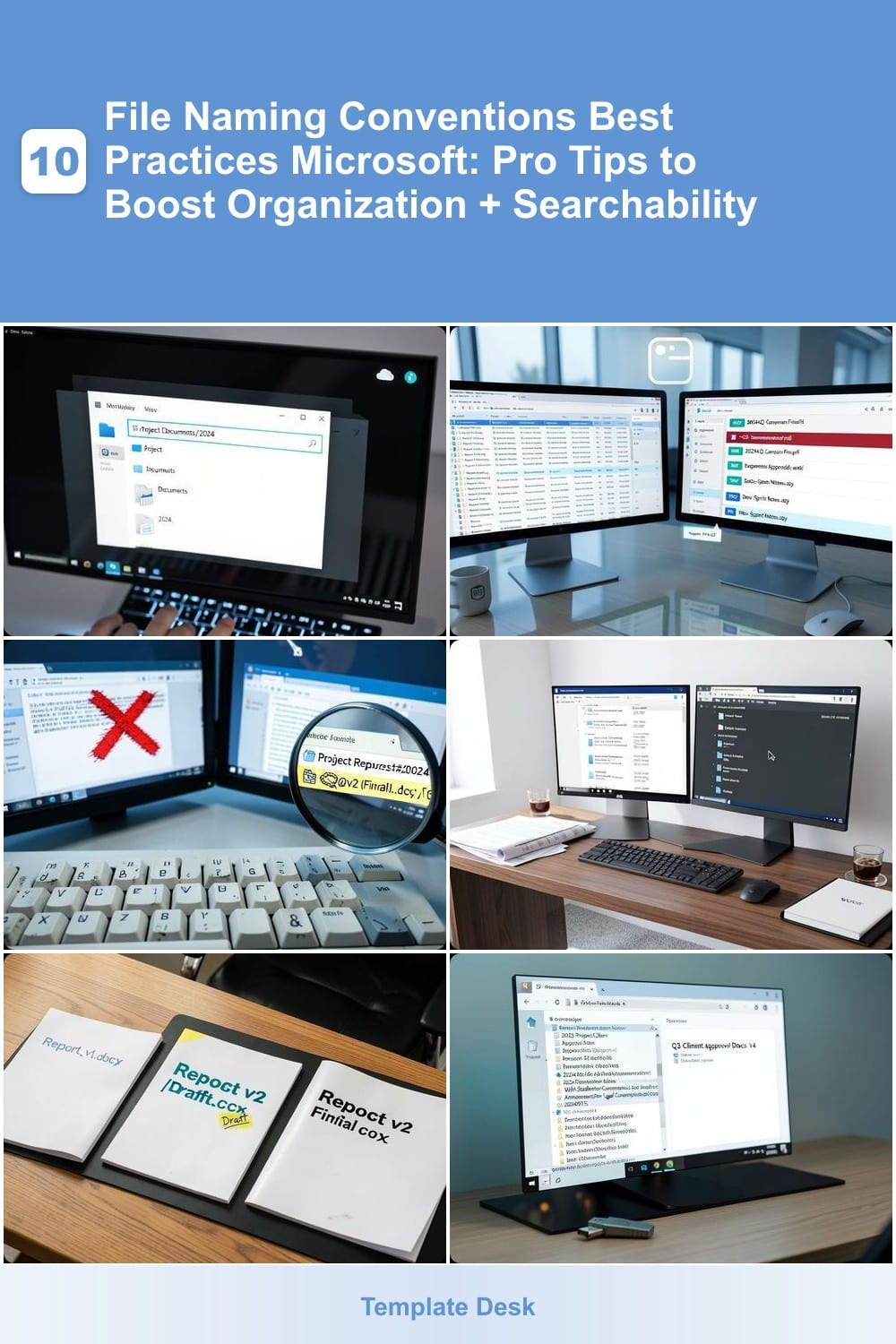
Struggling to find files in Windows Explorer or SharePoint? Microsoft’s file naming conventions can save hours of frustration. These seven best practices ensure seamless organization, faster searches, and effortless collaboration across Windows, Office, and cloud storage.
Use Forward Slashes for Folder Hierarchies
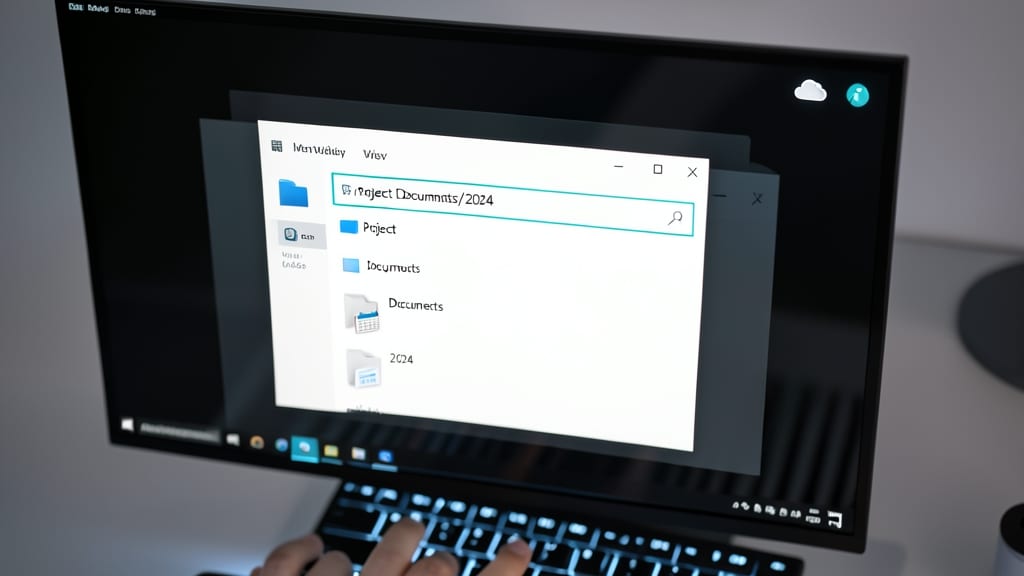
Ever wasted time manually creating nested folders in Windows Explorer? Microsoft’s hidden trick lets you skip the hassle entirely—just paste a path with forward slashes (e.g., Project/Documents/2024), and Windows/OneDrive will build the structure automatically.
This works seamlessly in both Windows Explorer and OneDrive, converting slashes to folders instantly when pasting into the address bar. Perfect for batch file transfers or scripting—no more typing each folder name individually. The feature even handles edge cases like missing intermediate folders.
Developers and sysadmins will love this for automated deployments, while power users can save time organizing large file sets. Just remember: backslashes (\) won’t work—stick to forward slashes for reliability. ✨
Prefix Files with Project Codes
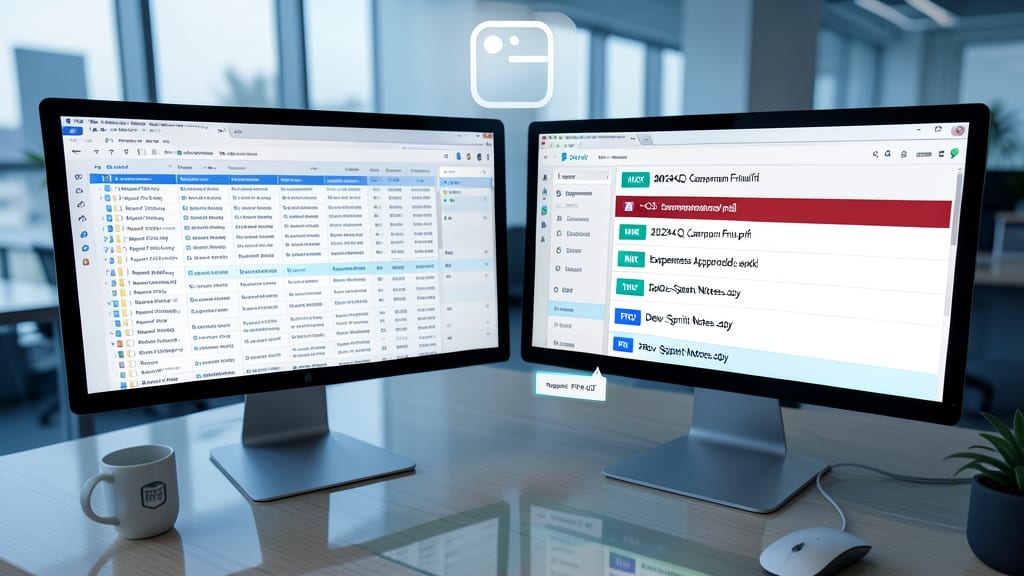
Tired of sifting through endless files in SharePoint or Teams without knowing which project they belong to? A 3-4 character prefix like MKT- or FIN- instantly transforms chaos into clarity. This simple trick lets teams filter files by department or project at a glance, even in large libraries.
Assigning codes like HR- for human resources or PROJ- for client work ensures consistency across documents. Microsoft’s search functionality and SharePoint metadata filters work seamlessly with these prefixes, making it easier to locate files by typing MKT* in the search bar. Plus, color-coding in Windows Explorer or Teams visuals reinforces the system.
This method is a game-changer for cross-functional teams collaborating on shared drives. Whether you're managing marketing assets or finance reports, prefixes keep everything organized without sacrificing flexibility. ✨
Avoid Special Characters and Spaces

Ever hit "Save" only to find your file becomes unreadable in Outlook or breaks a PowerShell script? Special characters and spaces are the silent saboteurs of file compatibility—Microsoft’s own tools often reject them without warning.
Stick to alphanumeric characters (A-Z, 0-9), hyphens (-), and underscores () to guarantee smooth operation. For example, Invoice2024.pdf works flawlessly, while Invoice 2024.pdf might trigger errors in automated workflows. This rule is non-negotiable for PowerShell scripts, Outlook attachments, and third-party integrations like CRM systems.
Developers, sysadmins, and teams sharing files across platforms will appreciate this zero-friction approach. It’s the small habit that prevents hours of debugging later. ✨
Include Dates in YYYY-MM-DD Format
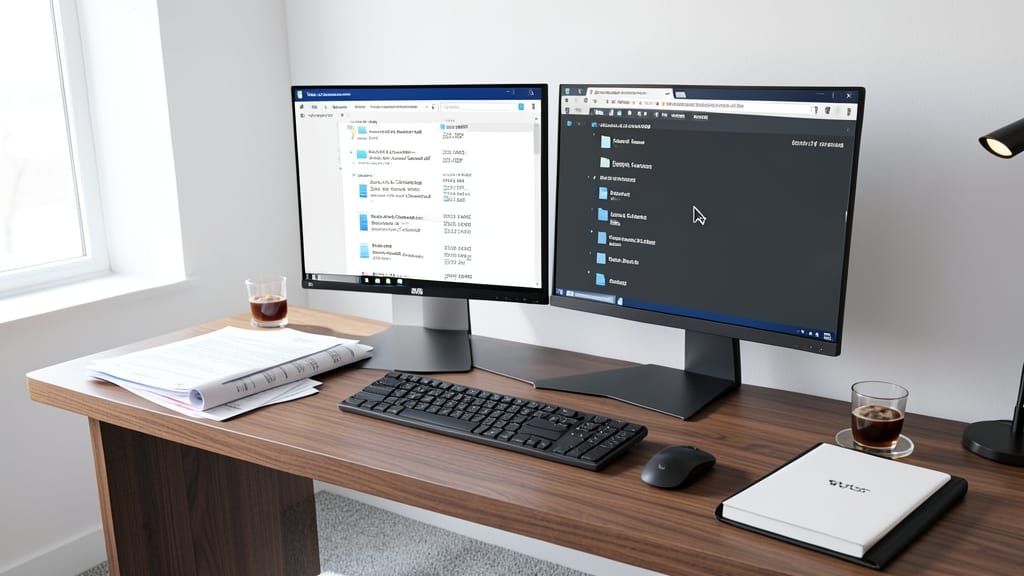
Tired of scrolling through files in random order? The YYYY-MM-DD format ensures your documents sort chronologically by default—no extra clicks needed. Whether you're managing contracts, invoices, or project logs, this simple tweak makes time-sensitive files instantly accessible.
Windows Explorer and Outlook automatically recognize this pattern, placing 2024-05-15Contract.docx before 2024-06-01Contract.docx without manual alphabetizing. It’s especially useful for audit trails or compliance-heavy workflows where chronological order matters. The hyphenated format also works seamlessly in SharePoint and OneDrive.
Perfect for legal teams, accountants, or anyone tracking time-sensitive documents. Your files will stay organized as they age—no more guessing when something was created. ✨
Use Version Numbers for Revisions
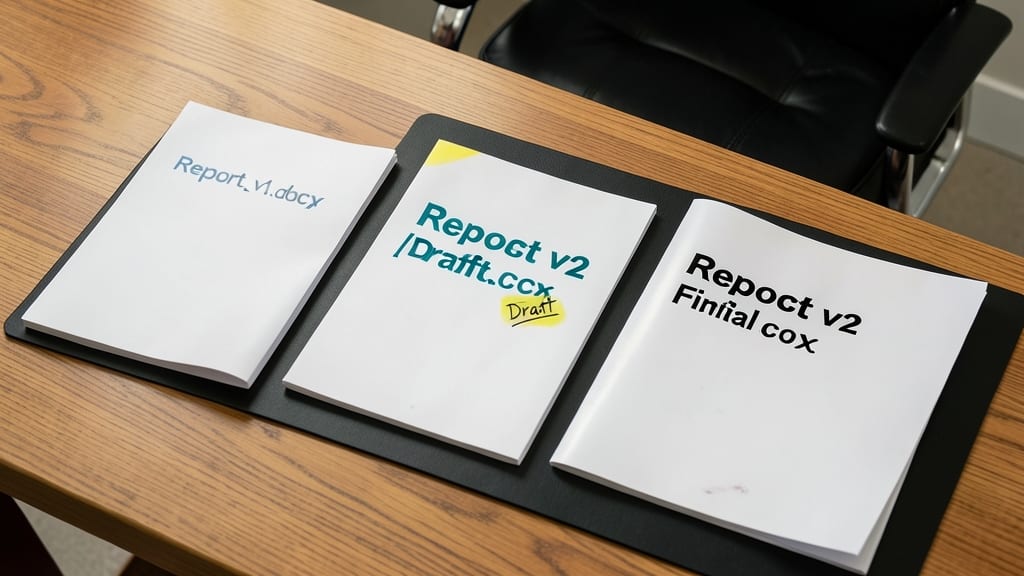
Ever sent a "final" version of a document, only to realize you forgot to update the name? Version control in filenames keeps your work organized without overwriting critical files.
Simply append v2, Final, or Draft to your filenames (e.g., "Reportv1.docx" → "Reportv2Final.docx"). Microsoft’s Office Suite automatically tracks these changes, and SharePoint integrates version history seamlessly—no third-party tools needed. This method also works flawlessly with Power Automate for automated workflows.
Perfect for teams collaborating on documents, freelancers managing client revisions, or anyone who’s ever lost track of which file is the "real" one. ⚡
Limit Filenames to 64 Characters
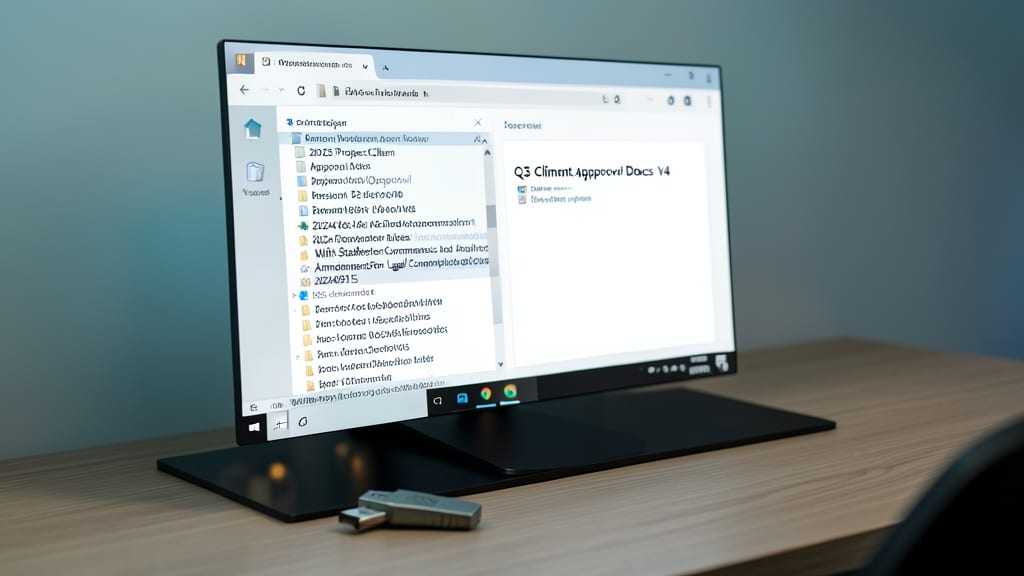
While Windows lets you stretch filenames to 255 characters, sticking to 64 characters prevents headaches with legacy systems that still choke on longer names. Think email clients, older Access databases, or even some network drives that silently truncate your carefully crafted filenames.
Microsoft’s default limit is 255, but 64 characters ensures compatibility with systems like Microsoft Access databases (which cap at 64) or older email servers that reject attachments with long filenames. It’s also a safer bet when sharing files across departments—no one wants to debug why their "SuperDetailedProjectReportWithAllTheNotesAnd_Changes.docx" won’t open.
This rule is especially useful for enterprise teams managing documents across multiple platforms or for IT admins supporting mixed environments. A shorter filename keeps everything running smoothly. ⚡
Leverage Metadata Tags for Searchability
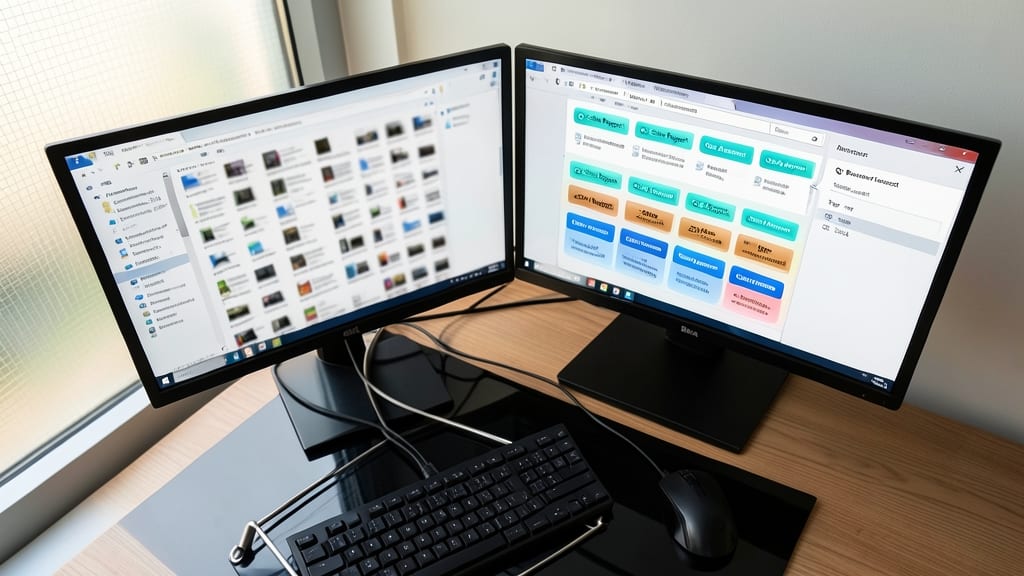
Tired of scrolling through endless files in Windows Search or SharePoint? Metadata tags are your secret weapon for instant filtering—without cluttering filenames.
Right-click any file in Windows Explorer and select Properties to add Title, Subject, or Tags (e.g., "Q2," "Sales," "2024"). These fields sync with Windows Search and SharePoint libraries, letting you filter by keywords like "Client=Acme" or "Department=Marketing" in seconds. Best of all, it works alongside your clean, simple filenames (like Q2_Sales.xlsx) for a double-layered search system.
Perfect for teams drowning in documents—marketers, account managers, or IT admins—this trick turns chaotic folders into a searchable database. 💡